> ## Documentation Index
> Fetch the complete documentation index at: https://docs.broadcast.events/llms.txt
> Use this file to discover all available pages before exploring further.

# Wix

> In order to succesfully add the widget to your Wix website you will need to have a premium account.

## Widget Installation

### Step 1:

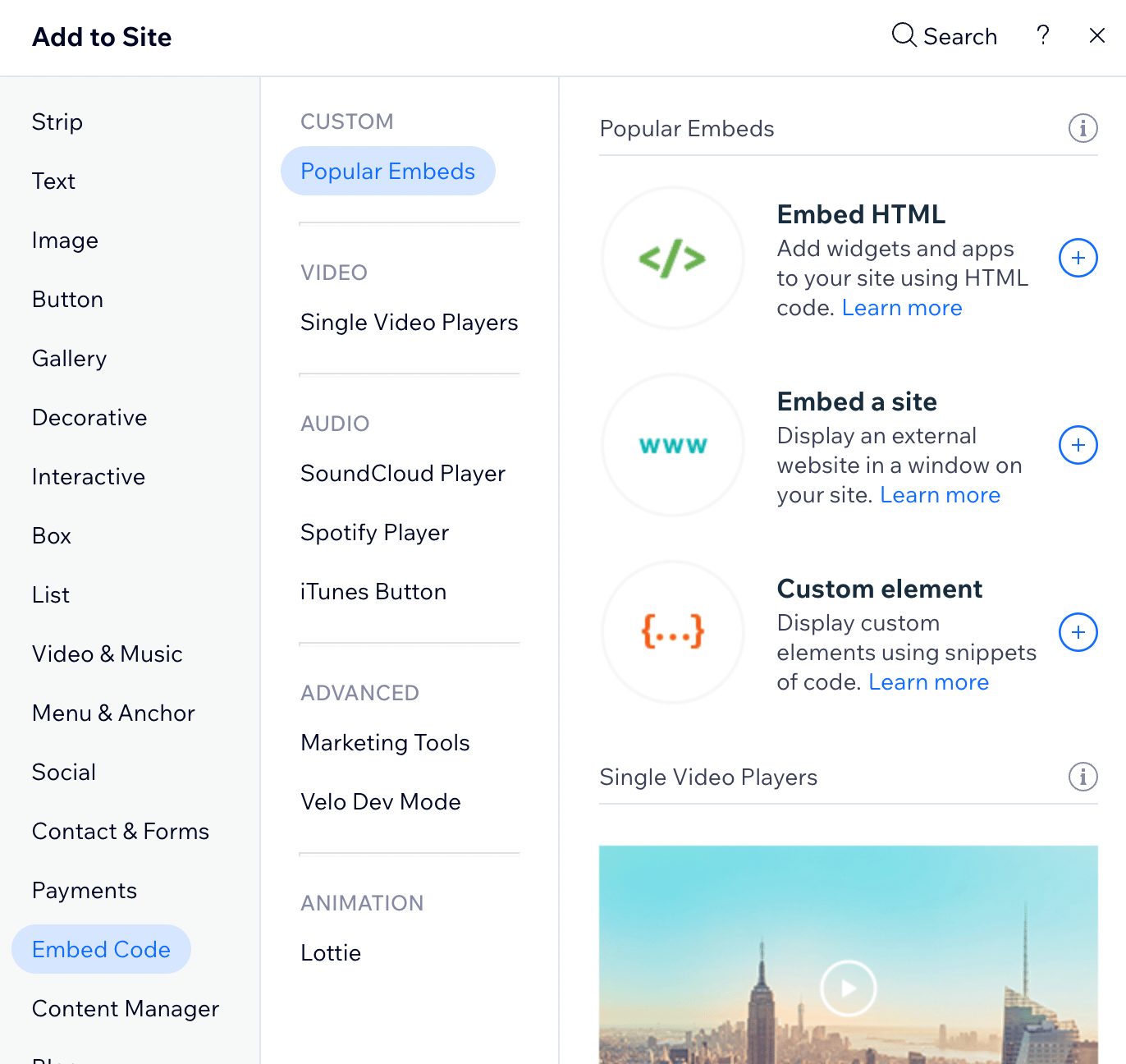
Inside the Wix site editor naviagate to the page and section you want to add the widget to, then click the plus button and select Embed Code to show the menu below.

<img src="https://mintcdn.com/broadcast/RChz1SVWgI1Ev6GU/images/widgets/assets/images/wix-add-f732513c62104ce2a841f97ddef5a213.png?fit=max&auto=format&n=RChz1SVWgI1Ev6GU&q=85&s=6e370232827c80e5557f7e101d0566f6" alt="Wix add new element dialogue" width="1372" height="1296" data-path="images/widgets/assets/images/wix-add-f732513c62104ce2a841f97ddef5a213.png" />

### Step 2:

Select the Embed HTML option and paste the following code:

```html theme={null}
<div
  id="bc-widget"
  data-venue="YOUR-VENUE-ID"
  data-hidevenue="true"
  data-grid="true"
  data-recommended="false"
  data-key=""
  data-accentcolor="#dc566f"
></div>
<link href="https://widgets.broadcast.events/v2/listings/widget.css" rel="stylesheet" />
<script src="https://widgets.broadcast.events/v2/listings/widget.js" type="module"></script>
```

The dialogue should look like this:
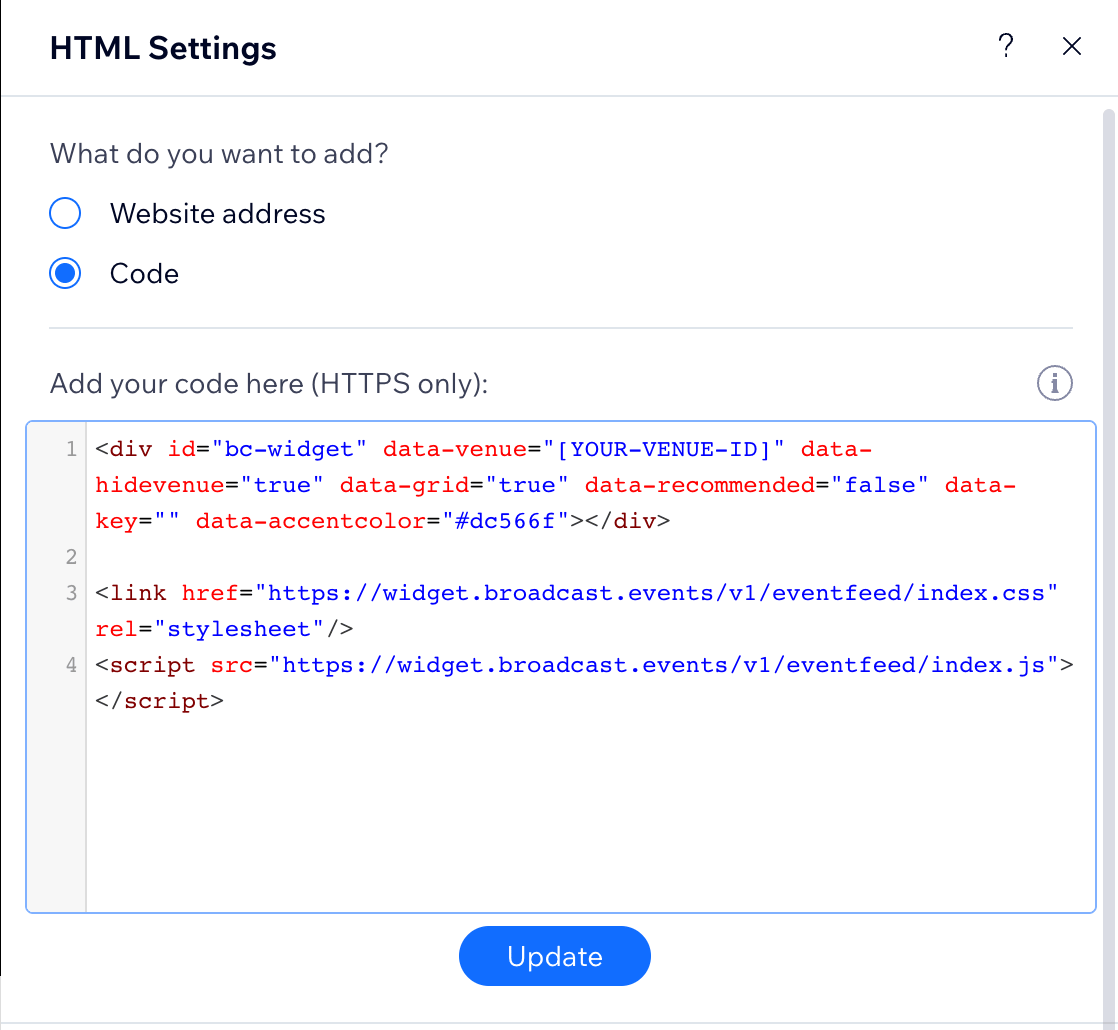
<img src="https://mintcdn.com/broadcast/RChz1SVWgI1Ev6GU/images/widgets/assets/images/wix-embed-code-eeb5785067f4f8f203086a0bab90110e.png?fit=max&auto=format&n=RChz1SVWgI1Ev6GU&q=85&s=8e74dd92a2c7c610b699fd9e64814986" alt="Wix add code dialogue" width="1118" height="1030" data-path="images/widgets/assets/images/wix-embed-code-eeb5785067f4f8f203086a0bab90110e.png" />

### Step 3:

Replace `[YOUR-VENUE-ID]` with the Venue ID you have been provided with and press the Update button.

After a few seconds the widget should load your events, but by default will be quite small looking something like this:
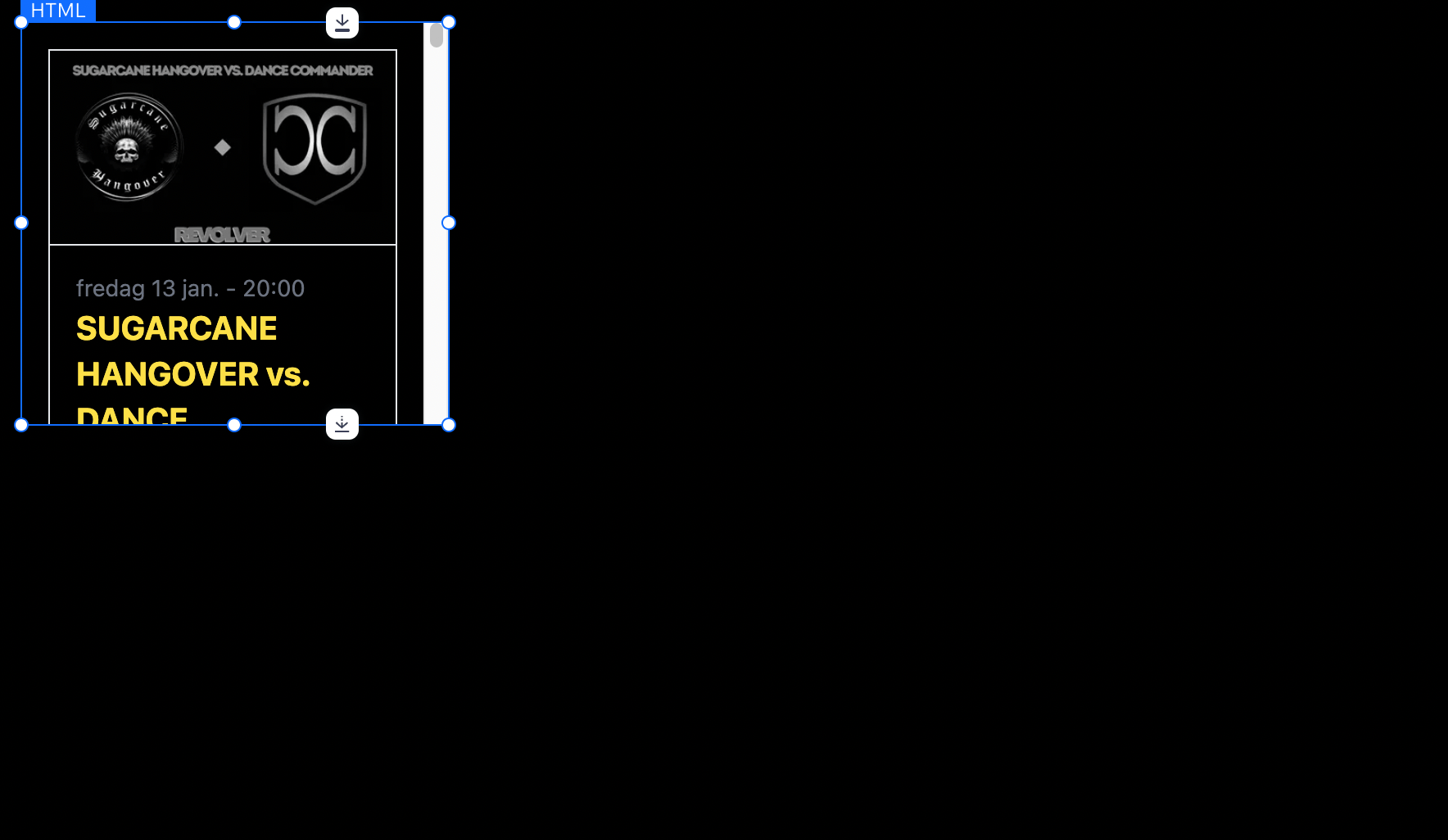
<img src="https://mintcdn.com/broadcast/RChz1SVWgI1Ev6GU/images/widgets/assets/images/wix-small-container-14a89d2fb09cca40fb904c41a768a63a.png?fit=max&auto=format&n=RChz1SVWgI1Ev6GU&q=85&s=a3f526cba5588c5366c0d621f298663b" alt="Wix small container" width="1768" height="1026" data-path="images/widgets/assets/images/wix-small-container-14a89d2fb09cca40fb904c41a768a63a.png" />

<Check>
  If you try the above code and get no events loading in the widget remember to check the following:

  * When adding your venue code you must remove the square brackets `[]` as well eg: `data-venue="XXXXXXX"` where XXXXXXX is your venue code.
</Check>

## Apperance

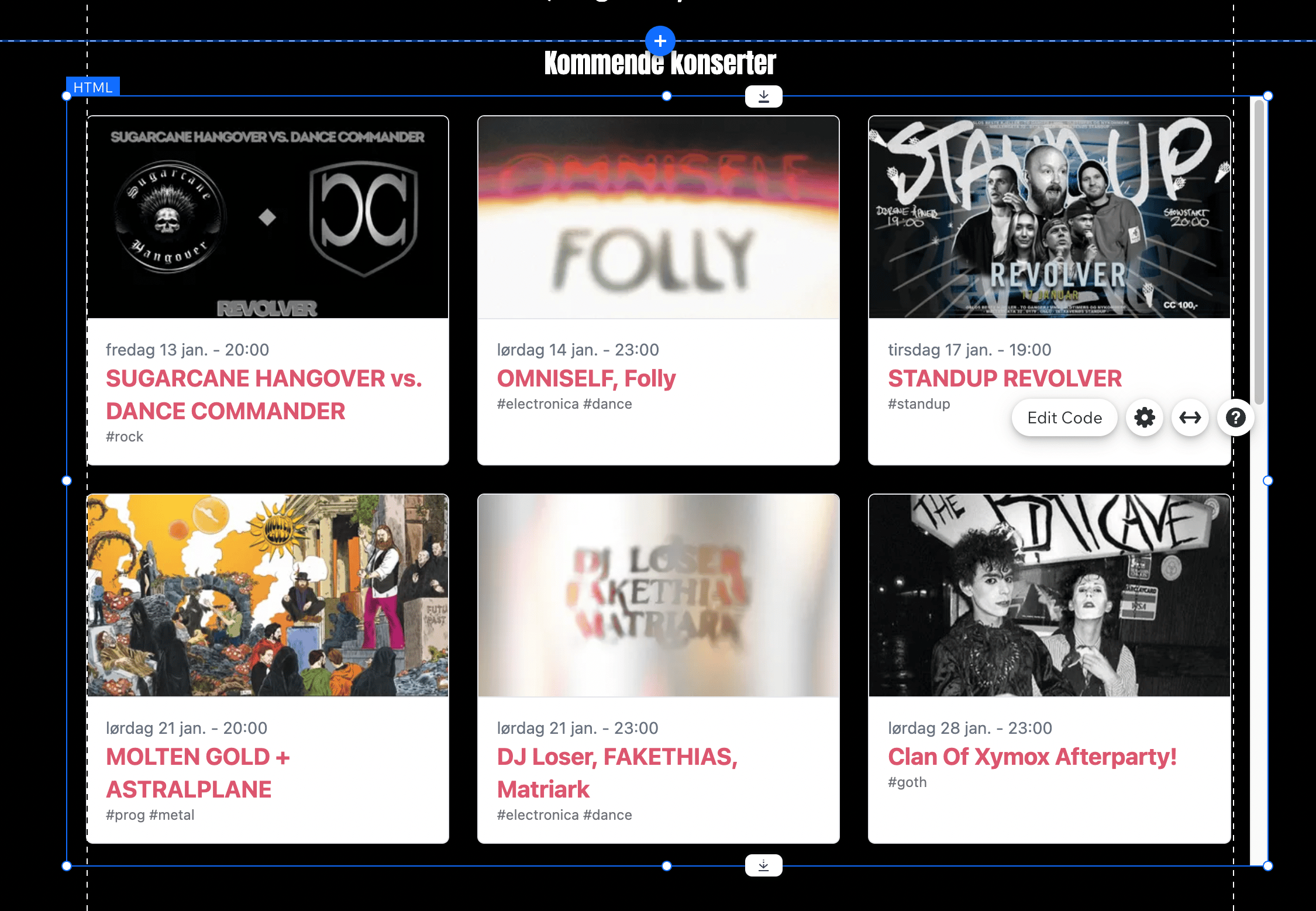
Wix does not support responsive embed elements, so we need to then adjust the widget to be a good fit for you site, with extra events available by scrolling.

For example 6 or 9 might be good for a small venue, see the example below:

<img src="https://mintcdn.com/broadcast/RChz1SVWgI1Ev6GU/images/widgets/assets/images/wix-resize-widget-example-ab1aa374be27159cdfd6162462799ffb.png?fit=max&auto=format&n=RChz1SVWgI1Ev6GU&q=85&s=c042e2ca7d2d049fee2aad33886da69d" alt="Wix widget" width="2250" height="1558" data-path="images/widgets/assets/images/wix-resize-widget-example-ab1aa374be27159cdfd6162462799ffb.png" />
